View Transitions in React, Next.js, and Multi-Page Apps
December 28, 2025 | 14 minutesIn This Post
Modern web apps move fast, but their UI transitions often lack the smooth animations of native apps.
The View Transition API aims to fix that by giving you native, high-performance, zero-overhead animations when your app's DOM changes. They work for in-page transitions as well as transitions between pages, even in multi-page apps (MPAs). And with React Canary’s new experimental <ViewTransition /> component, these transitions finally become React-friendly.
Let’s get into it.
What Is the View Transition API?
The View Transition API is a browser feature that captures two snapshots of your UI:
- Before your DOM updates
- After your DOM updates
Then it uses CSS to animate between them. No virtual DOM hacks. No giant animation libraries. No performance-killing reflows.
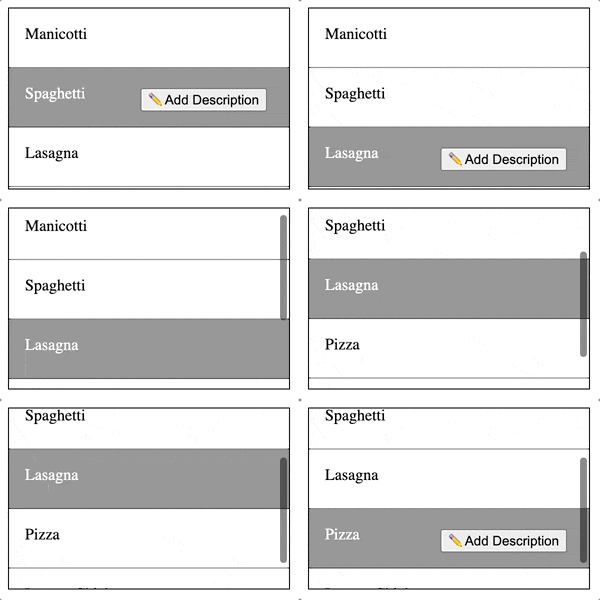
Call document.startViewTransition(() => {}) and inside that callback, update the UI with page changes, component swaps, reordered items, or whatever other changes are needed. The browser animates the difference, greatly reducing the amount of CSS and JavaScript that you need to write (and painstakingly tweak 😅).
The View Transition API eliminates layout jank entirely. With the browser managing transitions, you don't have to worry about elements jumping around mid-animation. Performance is excellent too, since the API leverages compositor layers under the hood. This means the animations run on the GPU rather than the main thread, so they stay smooth at 60fps even while JavaScript is executing or the page is re-rendering. (View transitions work by snapshotting the entire viewport, though, so the API can be memory-intensive on complex pages.)
What makes it especially versatile is that it works with partial updates, not just full-page navigations. You can animate small UI changes just as easily as route transitions. And because CSS controls the animation rather than JavaScript, you get the full power of CSS animations and keyframes without writing complex orchestration logic. With the @view-transition { navigation: auto } rule, it also supports animated transitions between pages in multi-page apps, which was virtually impossible before this API.
Browser support varies depending on which approach you use:
- Same-document transitions (
startViewTransition()): Chrome, Edge, and Safari 18+ - Cross-document transitions (
@view-transition): Chrome 126+ and Edge 126+. Safari and Firefox don't support this yet. - React
<ViewTransition>: Depends on the underlying browser support for the View Transition API
For unsupported browsers, navigation and updates work normally. Users just won't see the transition animations.
Using the View Transition API with Vanilla JavaScript
Here's a practical example — a card grid where clicking a card expands it into a detail view. The card image morphs smoothly between states using a shared view-transition-name.
The key technique here is dynamically setting view-transition-name on the clicked card's image, then using the same name on the detail image. The browser automatically morphs between them. View the example on Codepen
Using <ViewTransition /> in Next.js (React Canary)
The React 19 release includes an experimental new primitive that's small but powerful:
1import { ViewTransition } from "react";
This component wraps your render output and tells React that when the subtree changes, it should animate the transition using the View Transition API. React handles the timing; the browser handles the animation.
The default transition is a cross-fade, but you can customize it by providing a transition class and applying CSS to it, like below.
React will run a view transition whenever:
- a
<ViewTransition>is inserted or removed from the DOM during a transition - if there are any DOM mutations within a
<ViewTransition>during the update cycle, or - if two components (one inserted and one removed) share the same view transition name during a transition
Why Use the <ViewTransition> Component Instead of the API Itself?
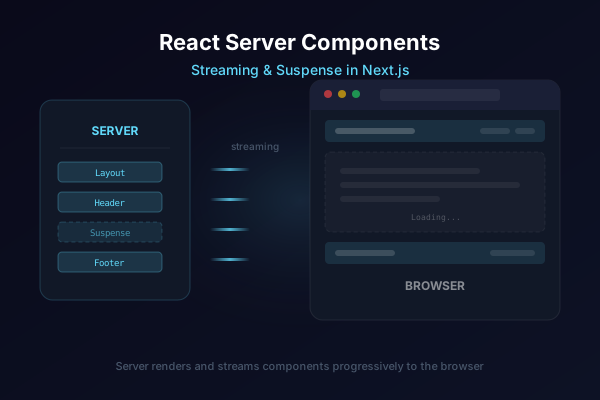
The <ViewTransition> component integrates seamlessly with React's rendering model. Instead of manually calling document.startViewTransition and trying to coordinate it with React's update cycle, the component handles that orchestration for you. It works naturally with Suspense boundaries and client components.
One of the biggest pain points it solves is timing. Without it, it can be tricky to deal with situations where React re-renders before your transition has a chance to start, breaking the animation entirely. The component ensures transitions are properly synchronized with React's rendering and even gives you fine-grained control over transitions on a per-component subtree basis.
Note: <ViewTransition /> is activated when updates happen inside a React Transition (via startTransition, Suspense, or framework navigation). With Next.js App Router, route transitions automatically trigger view transitions, so no manual startTransition is needed.
Example App: A Next.js Gallery With View Transitions
This example uses Next.js 16 with the App Router and React's <ViewTransition> component. The key difference from vanilla JavaScript is that we wrap elements in <ViewTransition name="..."> to give them transition names, and the framework handles the rest.
Our app:
- Shows a grid of photo cards
- Clicking a card navigates to a detail page
- The photo image morphs smoothly between pages using a shared
name - Page titles and descriptions also animate between routes
The <ViewTransition name="..."> component wraps each element that should be included in the transition.
Elements with matching names across pages will morph between their positions. The name={`photo-image-${photo.id}`} matches the gallery thumbnail, so the browser morphs between them during navigation.
The <ViewTransition> component abstracts away the timing coordination between React's render cycle and the browser's View Transition API. With minimal code, you get:
- Photo thumbnails that morph into a full-size hero image
- Page titles and descriptions that animate between client-side routes
- Back navigation reverses the transition smoothly
- No animation libraries or manual
startViewTransitioncalls
Manual API in React: When You Need More Control
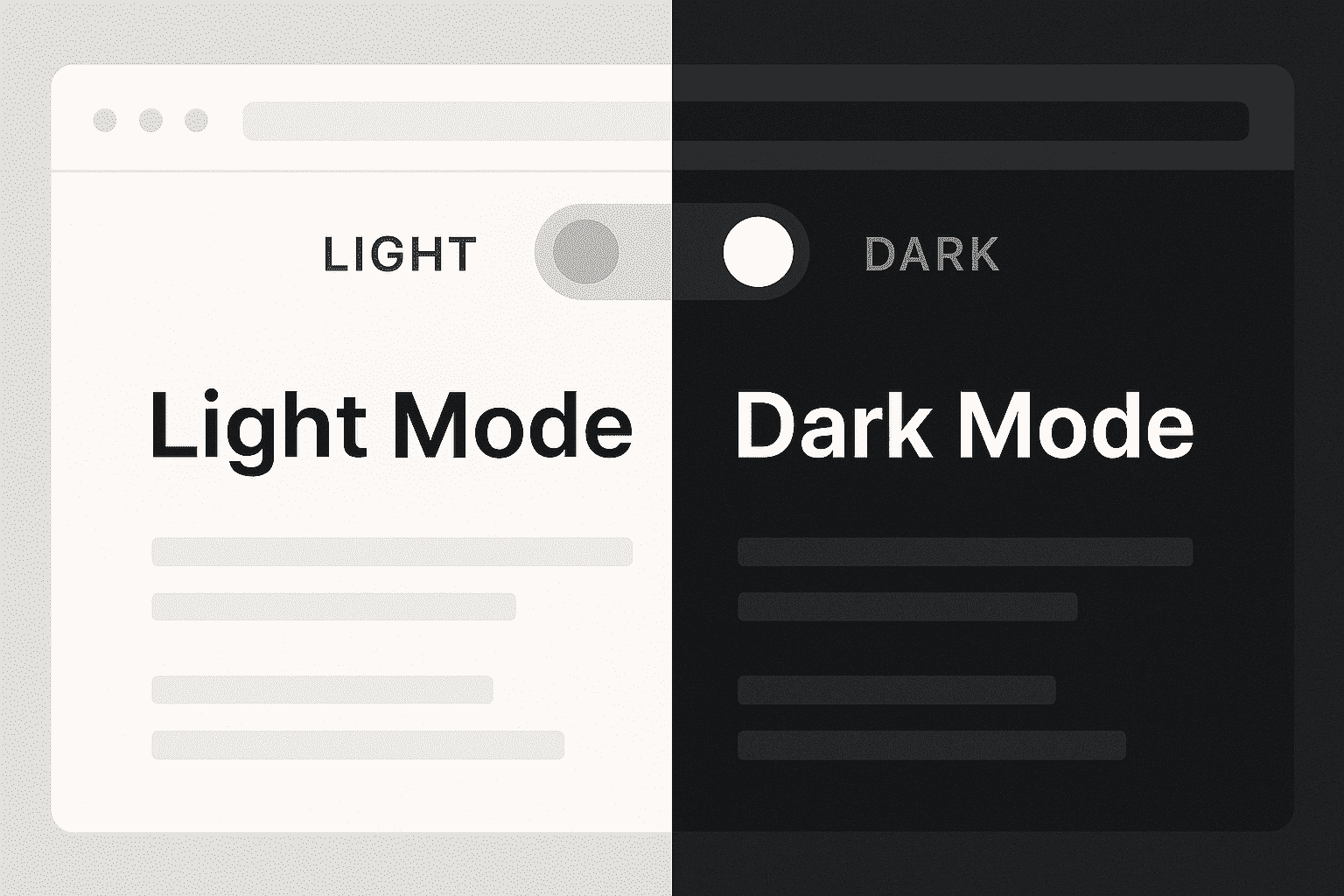
Sometimes you want to trigger view transitions manually, like for state changes that don't involve routing or when you need finer control over timing. Here's a theme toggle example that calls document.startViewTransition() directly:
1'use client';
2
3import { useState } from 'react';
4
5export default function ManualPage() {
6 const [darkTheme, setDarkTheme] = useState(true);
7
8 const toggleTheme = () => {
9 const update = () => setDarkTheme((prev) => !prev);
10
11 if (typeof document !== 'undefined' && 'startViewTransition' in document) {
12 (document as any).startViewTransition(() => {
13 update();
14 });
15 } else {
16 update();
17 }
18 };
19
20 return (
21 <div className="manual-wrapper">
22 <h2>Manual View Transition API</h2>
23 <p>
24 This page calls <code>document.startViewTransition()</code> directly
25 around a state update.
26 </p>
27
28 <section
29 className="theme-preview"
30 data-theme={darkTheme ? 'dark' : 'light'}
31 style={{ viewTransitionName: 'theme-preview' }}
32 >
33 <span className="theme-label">
34 Theme: {darkTheme ? 'Dark' : 'Light'}
35 </span>
36 <button onClick={toggleTheme}>
37 Toggle theme
38 </button>
39 </section>
40 </div>
41 );
42}
The key here is wrapping the state update inside startViewTransition(). The browser snapshots the DOM before and after update() runs, then animates between them. Adding viewTransitionName: 'theme-preview' to the preview section lets you target it specifically in CSS.
Custom animation for the theme toggle
1::view-transition-group(theme-preview) { 2 animation-duration: 600ms; 3 animation-timing-function: cubic-bezier(0.4, 0, 0.2, 1); 4} 5 6::view-transition-new(theme-preview) { 7 animation: theme-wipe-in 600ms ease-in-out forwards; 8 clip-path: circle(0% at 50% 50%); 9} 10 11@keyframes theme-wipe-in { 12 from { 13 clip-path: circle(0% at 50% 50%); 14 opacity: 0; 15 } 16 to { 17 clip-path: circle(100% at 50% 50%); 18 opacity: 1; 19 } 20}
This creates a circular reveal effect when the theme changes, which is much more interesting than a simple crossfade.
Comparing the Two Approaches
| Aspect | <ViewTransition> Component | Manual startViewTransition() |
|---|---|---|
| Best for | Route transitions, framework-managed state | Local state changes, custom timing |
| Timing | Automatic — React coordinates with the browser | Manual — you control exactly when it fires |
| Transition names | Via name prop on component | Via viewTransitionName CSS property |
| Framework integration | Deep — works with Suspense, server components | Shallow — just wraps your update callback |
| Complexity | Lower — framework handles orchestration | Higher — you manage feature detection and fallbacks |
Use <ViewTransition> when:
- Animating between routes or pages
- You want React to handle timing automatically
- Working with server components or Suspense
Use manual startViewTransition() when:
- Animating local state changes (theme toggles, accordion opens, etc.)
- You need precise control over when the transition starts
- Building framework-agnostic components
Both approaches use the same underlying browser API and CSS pseudo-elements, so you can mix them in the same app.
Cross-Document View Transitions (MPA)
Everything we've covered so far happens within a single page: React re-renders -> JavaScript updates the DOM -> client-side navigation -> and the browser animates. But what about traditional multi-page apps where clicking a link loads an entirely new HTML document?
The @view-transition CSS at-rule enables cross-document view transitions without the need for JavaScript.
How It Works
Add this to your CSS for all pages that you want to show transitions between:
1@view-transition { 2 navigation: auto; 3}
That's it. Now when users navigate between pages via links, the browser will:
- Capture a snapshot of the current page
- Load the new page completely
- Capture a snapshot of the new page
- Animate between the two snapshots
Elements with matching view-transition-name values across pages will morph between their positions automatically.
Example: Card Grid to Detail Page
Notice these are plain <a href> tags, not Next.js <Link> components or React Router. The browser handles everything because of the @view-transition CSS at-rule. It works without the need for Next.js or any other JavaScript framework.
The hero-image transition name appears on both the card thumbnail and the detail hero — so the browser morphs between them during navigation.
When to Use cross-document transitions
This approach is ideal for:
- Static sites
- Traditional MPAs that use server-rendered pages with full reloads
- Progressive enhancement that adds polish without changing the app architecture
- Simple marketing sites where you want smooth page transitions without building a single-page app (SPA)
Caveats
A few things to keep in mind:
- The React
<ViewTransition>component is experimental and only available in React Canary. It's not stable yet. - Same-document transitions, which use
startViewTransition(), only work right now in Chrome, Edge, and Safari 18+. - Cross-document transitions, which use
@view-transition, require Chrome 126+ or Edge 126+. There's no Safari or Firefox support yet. - Complex layouts sometimes need
contain: layoutorisolation: isolateto animate correctly - Deeply nested DOM changes can produce unexpected results with component-level transitions
The API is still evolving, but the foundations are solid. You can already build smooth, native-feeling UI without shipping heavy animation libraries. Plus, the same-document and cross-document transitions work as a progressive enhancement; browsers that don't support them still work, but users won't see the transition animations.
Final Thoughts
The View Transition API is one of those rare browser APIs that instantly makes apps feel more professional with almost no coding overhead. Pairing it with React’s experimental <ViewTransition /> component unlocks an entirely new quality level for page-to-page transitions, state changes, and UI morphing.
If you want your app to feel like a native mobile app without shipping a suitcase full of animation code, this is the path.
And yes, your users will notice. Smooth transitions make your web app feel more delightful!
Check out all of the code from the demos above on Github.
For more CSS techniques to polish your app's UI, see how to style the native HTML color input with CSS or add dark mode with the CSS color-scheme property.