Scroll-Driven Animations in CSS: No JavaScript Required
March 22, 2026 | 10 minutesIn This Post
Scroll-linked effects are everywhere on the web from reading progress bars to parallax backgrounds and elements that fade in as you scroll down. Historically, all of these required JavaScript: scroll event listeners, IntersectionObserver, or animation libraries like GSAP or Framer Motion.
Not anymore. The CSS scroll-driven animations API lets you tie any CSS @keyframes animation directly to scroll progress, entirely in CSS. No JavaScript. No libraries. No requestAnimationFrame loops.
Let's look at how it works and what you can build with it.
How Scroll-Driven Animations Work
Traditional CSS animations run on a time-based timeline. You define keyframes, set a duration, and the browser plays the animation over that time period. Scroll-driven animations replace the time-based timeline with one of two scroll-based timelines:
scroll()— ties the animation to the scroll position of a scroll container. As the user scrolls from top to bottom, the animation progresses from 0% to 100%.view()— ties the animation to an element's visibility within the scrollport. The animation progresses as the element enters, crosses, and exits the viewport.
The syntax builds on top of the existing @keyframes and animation properties you already know, so you aren't learning an entirely new animation system.
Scroll Progress Animations with scroll()
The simplest use case is a reading progress bar. Here's one that fills as the user scrolls down the page:
1<div class="progress-bar"></div>
1.progress-bar { 2 position: fixed; 3 top: 0; 4 left: 0; 5 height: 4px; 6 background: linear-gradient(to right, #3b82f6, #8b5cf6, #ec4899); 7 width: 0%; 8 z-index: 100; 9 10 animation: grow-progress linear; 11 animation-timeline: scroll(); 12} 13 14@keyframes grow-progress { 15 from { width: 0%; } 16 to { width: 100%; } 17}
That's it. No scroll event listeners. No calculating scrollTop / scrollHeight. The browser handles everything and runs the animation on the compositor thread, so it's buttery smooth even on complex pages. This is how the reading progress bar at the top of this blog page works.
How scroll() Works
The scroll() function accepts two optional arguments:
1animation-timeline: scroll(<scroller> <axis>);
<scroller>: which scroll container to track. Options arenearest(default, finds the nearest scrollable ancestor),root(the document viewport), orself(the element itself).<axis>: which scroll axis to track. Options areblock(default, vertical in horizontal writing modes),inline(horizontal),x, ory.
For a progress bar, scroll() with no arguments tracks the nearest scrollable ancestor on the block axis, which for most layouts is the root page scroll. You can be explicit if you need to:
1/* Track the root scroller's vertical axis */ 2animation-timeline: scroll(root block); 3 4/* Track a specific container's horizontal scroll */ 5.carousel-item { 6 animation: slide-in linear; 7 animation-timeline: scroll(nearest inline); 8}
View Progress Animations with view()
While scroll() links animations to how far the user has scrolled, view() links them to where an element is within the viewport. This is what you want for reveal-on-scroll effects.
1.fade-in-section { 2 animation: fade-in linear both; 3 animation-timeline: view(); 4 animation-range: entry 0% entry 100%; 5} 6 7@keyframes fade-in { 8 from { 9 opacity: 0; 10 transform: translateY(40px); 11 } 12 to { 13 opacity: 1; 14 transform: translateY(0); 15 } 16}
This replaces the IntersectionObserver and class toggle pattern that's been the standard approach for years. The element fades in and slides up as it enters the viewport, entirely in CSS.
Here's a live example. Scroll within the preview to see the cards animate in:
Understanding animation-range
The animation-range property controls which portion of the timeline the animation maps to. This is what makes view() truly powerful. The range is defined using two values: a start and an end point.
The available range keywords for view() are:
entry: when the element enters the scrollport (from first pixel visible to fully visible)exit: when the element exits the scrollport (from fully visible to last pixel gone)contain: the element is fully contained within the scrollportcover: from first pixel entering to last pixel leaving (the full range)
Each keyword can be combined with a percentage:
1/* Animate during the first half of the element entering */ 2animation-range: entry 0% entry 50%; 3 4/* Animate while fully visible, from 25% to 75% of the contain phase */ 5animation-range: contain 25% contain 75%; 6 7/* Animate over the entire crossing, entry through exit */ 8animation-range: cover 0% cover 100%;
The view() Function Parameters
Like scroll(), view() accepts optional arguments:
1animation-timeline: view(<axis> <inset>);
<axis>: same asscroll(). The options areblock(default),inline,x, ory.<inset>: adjusts the viewport edges inward. You can pass one value (applied to both edges) or two values (start and end). This shrinks the effective viewport, meaning elements need to scroll further in before their animation starts.
1/* Start the animation when the element is 100px inside the viewport edge */ 2animation-timeline: view(block 100px); 3 4/* Different insets for top and bottom */ 5animation-timeline: view(block 50px 150px);
Practical Examples
Parallax-Style Effect
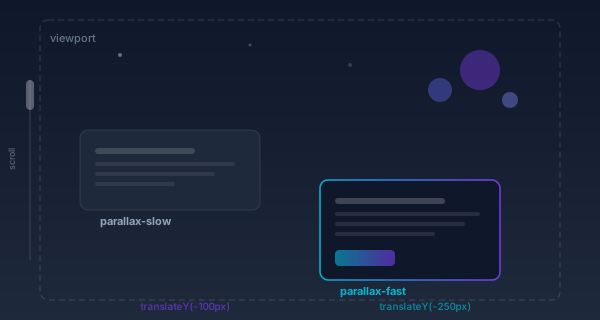
Create depth with elements that scroll at different speeds without any JavaScript parallax libraries.
1.parallax-slow { 2 animation: parallax-shift linear; 3 animation-timeline: scroll(); 4} 5 6@keyframes parallax-shift { 7 from { transform: translateY(0); } 8 to { transform: translateY(-100px); } 9} 10 11.parallax-fast { 12 animation: parallax-shift-fast linear; 13 animation-timeline: scroll(); 14} 15 16@keyframes parallax-shift-fast { 17 from { transform: translateY(0); } 18 to { transform: translateY(-250px); } 19}
Elements with parallax-slow shift less than those with parallax-fast, creating the layered depth effect.
Horizontal Scroll-Linked Gallery
Animate items in a horizontally scrolling container:
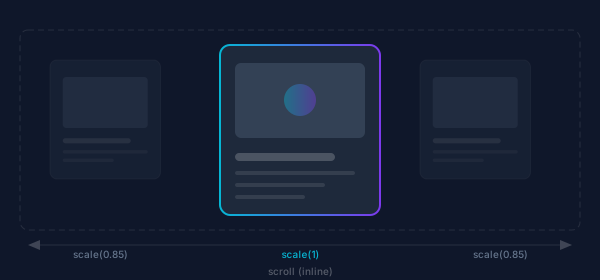
1.gallery { 2 display: flex; 3 overflow-x: auto; 4 scroll-snap-type: x mandatory; 5} 6 7.gallery-item { 8 scroll-snap-align: center; 9 animation: scale-up linear both; 10 animation-timeline: view(inline); 11 animation-range: contain 0% contain 100%; 12} 13 14@keyframes scale-up { 15 0%, 100% { 16 transform: scale(0.85); 17 opacity: 0.5; 18 } 19 50% { 20 transform: scale(1); 21 opacity: 1; 22 } 23}
Each item scales up and becomes fully opaque when it's centered in the gallery, and shrinks back down as it scrolls away. This is a common carousel pattern that usually requires significant JavaScript.
Staggered Reveal with animation-delay
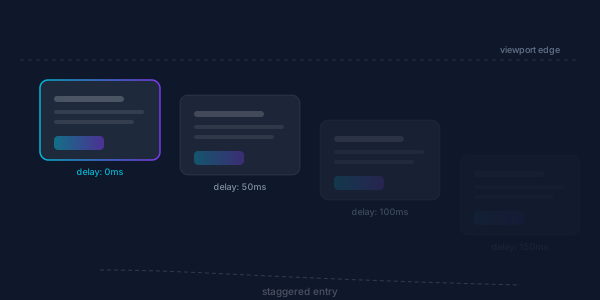
You can still combine scroll-driven animations with traditional animation properties like animation-delay to stagger elements:
1.card:nth-child(1) { animation-delay: 0ms; }
2.card:nth-child(2) { animation-delay: 50ms; }
3.card:nth-child(3) { animation-delay: 100ms; }
4.card:nth-child(4) { animation-delay: 150ms; }
5
6.card {
7 animation: slide-up ease-out both;
8 animation-timeline: view();
9 animation-range: entry 0% entry 80%;
10}
11
12@keyframes slide-up {
13 from {
14 opacity: 0;
15 transform: translateY(30px);
16 }
17 to {
18 opacity: 1;
19 transform: translateY(0);
20 }
21}
Note that when using scroll timelines, animation-delay doesn't delay by a time duration. Instead, it offsets the animation along the scroll timeline.
Sticky Header Shrink
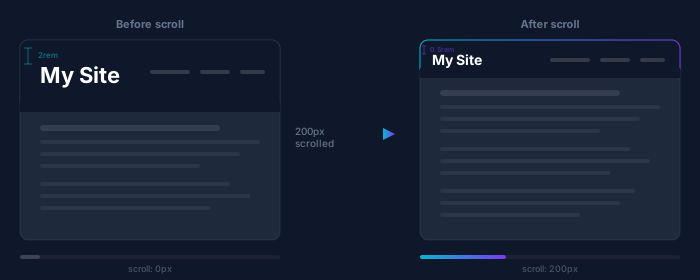
Shrink a header as the user scrolls.
1.sticky-header { 2 position: sticky; 3 top: 0; 4 animation: shrink-header linear forwards; 5 animation-timeline: scroll(); 6 animation-range: 0px 200px; 7} 8 9@keyframes shrink-header { 10 from { 11 padding-block: 2rem; 12 font-size: 2rem; 13 } 14 to { 15 padding-block: 0.5rem; 16 font-size: 1.2rem; 17 } 18}
Named Scroll Timelines
For cases where the default scroll() and view() don't give you enough control, you can create named timelines. This lets you link an animation to a specific scroll container that isn't an ancestor of the animated element.
1.scroll-container { 2 overflow-y: auto; 3 scroll-timeline-name: --my-scroller; 4 scroll-timeline-axis: block; 5} 6 7.animated-element { 8 animation: rotate linear; 9 animation-timeline: --my-scroller; 10} 11 12@keyframes rotate { 13 from { transform: rotate(0deg); } 14 to { transform: rotate(360deg); } 15}
Similarly, you can create named view timelines:
1.tracked-element { 2 view-timeline-name: --card-visibility; 3 view-timeline-axis: block; 4} 5 6.sibling-indicator { 7 animation: highlight linear both; 8 animation-timeline: --card-visibility; 9 animation-range: contain; 10}
Named timelines are useful when the default scroll() and view() can't reach the right scroll container or element. Some examples:
- Table of contents highlighting: A sidebar nav highlights the current section as the user scrolls the main content area. The nav items aren't children of the scrolling content, so they can't use
scroll()directly. A named timeline on the content area lets the nav link its animation to that scroll position. - Scroll-synced panels: A code editor with a preview pane side by side. Scrolling the code panel drives a progress indicator in the preview panel. Named timelines let you target a specific panel's scroll position rather than the nearest ancestor scroller.
- Minimap or scrollbar indicators: A minimap component that shows markers for different sections. Each section has a named view timeline, and the corresponding minimap marker animates (highlights, scales) based on whether that section is visible even though the marker lives in a completely separate part of the DOM.
- Dashboard widgets: A scrollable data table drives a chart animation in a separate widget. The chart can reference the table's named scroll timeline to sync its transitions with the table's scroll position.
Browser Support and Fallbacks
As of March 2026:
- Chrome 115+ and Edge 115+: Full support
- Opera 101+: Full support
- Safari 26: Full support
- Firefox: Partial support behind the
layout.css.scroll-driven-animations.enabledflag
Because animation-timeline is simply ignored by browsers that don't understand it, fallbacks are straightforward. The animation just won't play. The element will be in its final state (if you use animation-fill-mode: both) or its default state.
For critical scroll-linked effects, feature detection with @supports lets you provide alternatives:
1.fade-in-section { 2 /* Default: element is visible */ 3 opacity: 1; 4 transform: translateY(0); 5} 6 7@supports (animation-timeline: view()) { 8 .fade-in-section { 9 animation: fade-in linear both; 10 animation-timeline: view(); 11 animation-range: entry 0% entry 100%; 12 } 13}
This way, the content is always accessible. Users with supporting browsers get the enhanced experience, and everyone else sees the content normally.
Performance
Scroll-driven animations run on the compositor thread, which means they don't block the main thread and stay smooth at 60fps. This is a significant advantage over JavaScript-based scroll listeners, which run on the main thread and can cause jank on complex pages.
However, keep in mind:
- Only compositor-friendly properties (
transform,opacity) get the full performance benefit. Animatingwidth,height,padding, or other layout-triggering properties will still cause layout recalculations. - A large number of simultaneous scroll-driven animations on the same page can still impact performance. Be intentional about what you animate.
- Test on lower-end devices. Compositor animations are fast, but not free.
Scroll-Driven Animations vs. JavaScript Alternatives
| Aspect | CSS Scroll-Driven Animations | JavaScript (IntersectionObserver, GSAP, etc.) |
|---|---|---|
| Performance | Compositor thread, 60fps by default | Main thread, can cause jank |
| Bundle size | Zero; it's native CSS | Adds library weight (GSAP is ~25KB min) |
| Complexity | Simple for common patterns | More flexible for complex sequences |
| Browser support | Chrome/Edge 115+/Safari, Firefox behind a feature flag | Universal |
| Fallback | Graceful; animation just doesn't play | Requires implementation |
| Debugging | Chrome DevTools Animations panel | Varies by library |
For most scroll-linked effects, like progress bars, reveals, parallax, and sticky transformations, the CSS API is simpler, faster, and requires no dependencies. Reach for JavaScript when you need complex sequencing, physics-based animations, or need to support all browsers today.
Final Thoughts
Scroll-driven animations in CSS are one of the most impactful additions to the platform in recent years. They take patterns that previously required JavaScript dependencies and requestAnimationFrame loops and reduce them to a few lines of CSS. The performance characteristics are better, the code is simpler, and progressive enhancement is built in.
If you're building with Chrome, Edge, or the latest Safari as a primary target, you can start using these today. For broader browser support, wrap them in @supports and let the animations be a progressive enhancement.
For more CSS techniques, check out View Transitions in React, Next.js, and Multi-Page Apps or learn how to style the HTML color input with CSS.