Can My Browser Connect to This Bluetooth Device?
November 17, 2026 | 7 minutesIn This Post
You have a Bluetooth device sitting next to your computer. It works with its phone app, so you'd like to try connecting to it from a website. You open the browser's device picker, and the device doesn't appear. Or it appears and connects, but the website still can't read anything from it.
There are several steps between finding a device and reading a value. In Interact with Bluetooth Devices Using the Web Bluetooth API, I walked through those steps with a battery-level reader. While testing that example, I found that my Galaxy S9+ didn't advertise the battery service the demo was looking for. I used a simulator to try the code.
That experience is the starting point for this post. I built a Bluetooth Service Analyzer to make the steps visible. It shows what the browser observes before a connection, what it can inspect after connecting, and where an operation fails.
A service groups related data on a Bluetooth Low Energy device. Battery Service, for example, includes a battery-level value. Each service has an identifier called a UUID. The analyzer displays recognizable service names alongside their UUIDs so you can compare them with your device's documentation.
Try the Bluetooth service analyzer
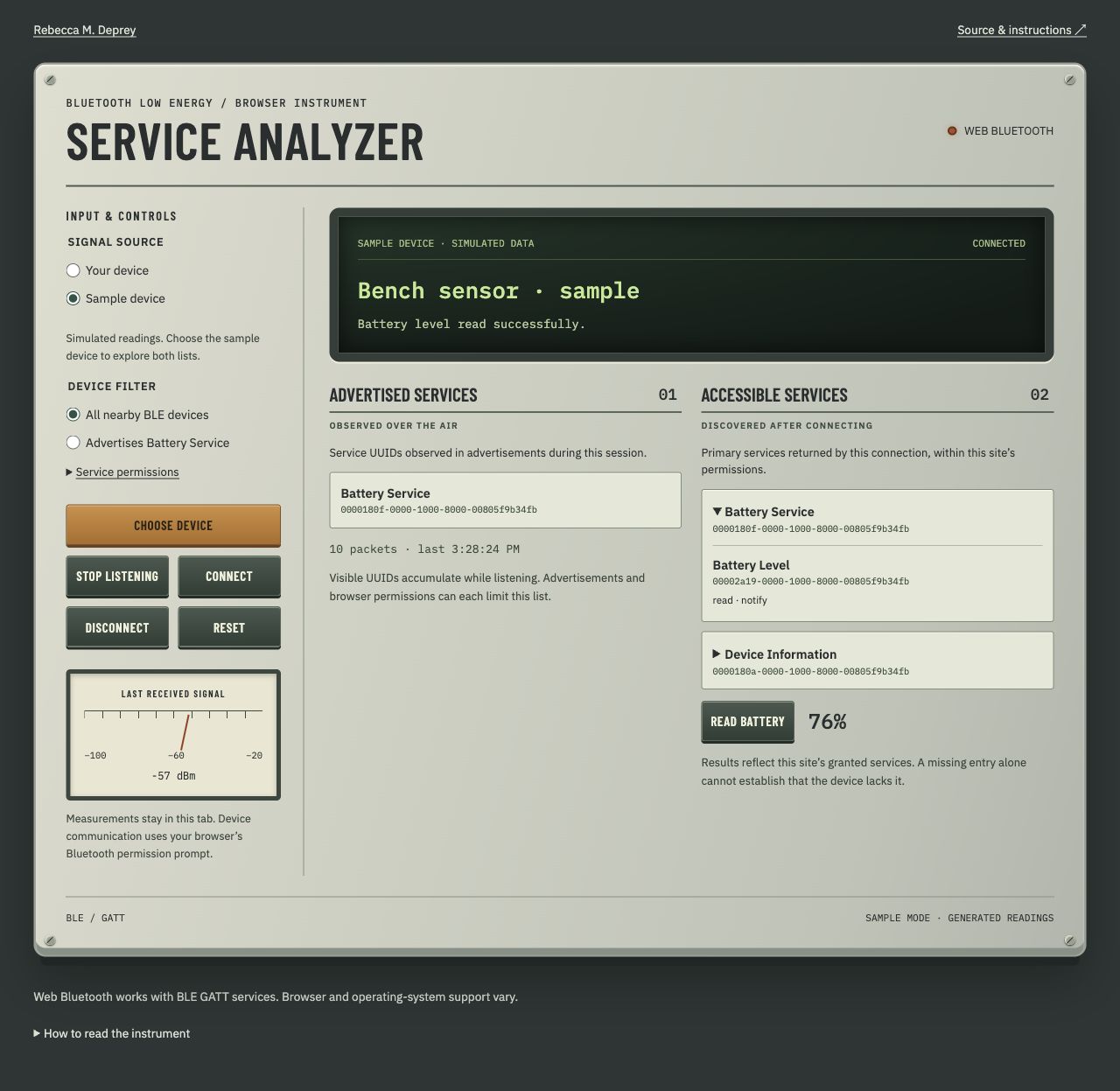
The analyzer has two readouts. Advertised services shows service UUIDs received in the device's broadcasts. Accessible services shows primary services the browser can inspect after connecting.
Start with the sample device so you can see what those two lists mean.
- Open the analyzer and select Sample device.
- Click Choose device, then Listen. Battery Service appears under Advertised services.
- Click Connect. Battery Service and Device Information appear under Accessible services.
- Expand Battery Service. You'll see its Battery Level characteristic and the operations it supports.
- Click Read battery. The sample returns 76%.
The sample uses generated readings and is labeled throughout the interface. Its service lists, battery value, and signal strength are fixed so you can explore the controls without a physical device. In this example, Device Information becomes visible after connecting even though it never appeared in the advertisement list.
Now try your device.
- Select Your device. This clears the sample readings.
- Keep All nearby BLE devices selected and click Choose device.
- Choose your device in the browser's picker.
- Click Listen if it's available. Give the device a few seconds to send an advertisement.
- Click Connect, then inspect the services returned by the connection.
Listen before connecting because some devices stop advertising while connected. If the browser can't watch advertisements, the analyzer explains that limitation and still lets you try connecting.
Web Bluetooth works with BLE devices exposing GATT services. A device's audio pairing or its ability to communicate with a proprietary phone app doesn't establish which services a website can use. Browser and operating-system support also vary. The page checks the API available in your current browser. Chrome's Web Bluetooth guide
Why doesn't my Bluetooth device appear?
The filter changes what the picker looks for. My original battery example requests devices that advertise Battery Service. The analyzer lets you compare that request with a broader one.
- Choose Advertises Battery Service and click Choose device.
- Look for your device, then cancel the picker.
- Choose All nearby BLE devices and open the picker again.
- Compare the results.
If the device appears only in the broader picker, you have a reason to investigate its advertised services. It might expose Battery Service after connecting without advertising its UUID. The broader picker still depends on the browser being able to discover the device.
An empty picker leaves more to investigate. Check that the device is awake, nearby, and advertising. If another app has connected to it, try disconnecting that app and opening the picker again. The analyzer reports a canceled or unsuccessful selection separately from a failed GATT connection.
What services does the device advertise?
After selecting a device, the analyzer can listen for its advertisements if the browser implements watchAdvertisements(). Each received event includes the service UUIDs the browser exposes.
1device.addEventListener("advertisementreceived", (event) => { 2 for (const serviceUuid of event.uuids) { 3 console.log(serviceUuid); 4 } 5}); 6 7await device.watchAdvertisements();
The analyzer accumulates those UUIDs for the selected device during the session. It also shows how many advertisements arrived, the time of the latest one, and the most recent received signal strength when available. Those measurements help distinguish a quiet device from one sending packets with no visible service UUIDs. Chrome's advertisement-watching example
Both the broadcast and the browser's permission rules affect this readout. A device can advertise only some of its services, and the Web Bluetooth specification filters advertised UUIDs through the services permitted for the website. Treat the list as the services this page has observed. An empty list cannot establish that the device has no services. Web Bluetooth specification
Advertisement watching is an experimental part of the API. A browser may support selecting and connecting to devices while lacking this operation. If listening is unavailable or fails, the analyzer keeps that result separate from the connection attempt.
What services can the browser access after connecting?
Selecting a device gives the page permission to work with it. Connect then opens a GATT connection and asks for its accessible primary services.
1const server = await device.gatt.connect();
2const services = await server.getPrimaryServices();
For each returned service, the analyzer also requests its characteristics. Expanding a service shows their UUIDs and the operation flags returned by the device, such as read and notify. A read flag tells you which operation is supported; attempting it can still fail because of connection or permission conditions.
Service access starts with the permission request. The analyzer requests Battery, Device Information, Heart Rate, and Environmental Sensing. You can see that list under Service permissions and add UUIDs from your device's documentation.
For example, this broad device request includes permission to access Battery Service later:
1const device = await navigator.bluetooth.requestDevice({ 2 acceptAllDevices: true, 3 optionalServices: ["battery_service"], 4});
If you select by name or use a broad picker, include the services you intend to access in optionalServices. A service in a service filter also grants access to that service. Chrome's Web Bluetooth guide
To request a custom service:
- Open Service permissions.
- Enter its UUID under Additional service UUIDs.
- Click Choose device and select the device again.
- Click Connect to repeat discovery with the updated permission request.
The browser can retain permissions from earlier selections. Reset clears the analyzer's readings and connection, while your browser's site settings manage persistent device permissions.
It connected. Why can't I read the battery?
A successful connection tells you that the browser reached the device's GATT server. A battery reading also requires Battery Service, its Battery Level characteristic, and a successful read.
If Battery Service appears in Accessible services, expand it and click Read battery. The analyzer reports the outcome in the main readout. If the read fails, look at that error separately from the earlier connection result.
If the service is missing, check the requested services and your device's documentation. The analyzer only sees primary services available within the website's permissions, and browser restrictions can limit access further. You can also try the sample device again to see the successful path.
Once you can read the battery, my original Web Bluetooth tutorial walks through decoding the value and subscribing to updates. The analyzer's source is available if you'd like to adapt the service inspection for a device you're building.
The result I want from this tool is a more specific question. Did the browser discover the device? Did an advertisement arrive? Did the connection succeed? Which permitted services could we inspect? Each observation gives us a concrete next step toward understanding what this device can do from a website.