Build a Custom Connector for Claude Cowork with the MCP TypeScript SDK
March 1, 2026 | 14 minutesIn This Post
- Why Build a Custom Connector?
- Project Structure
- Setting Up the Project
- Define Your Types
- Build the API Client
- Create Reusable Schema Fields
- Register Your Tools
- Wire It All Together
- Testing with the MCP Inspector
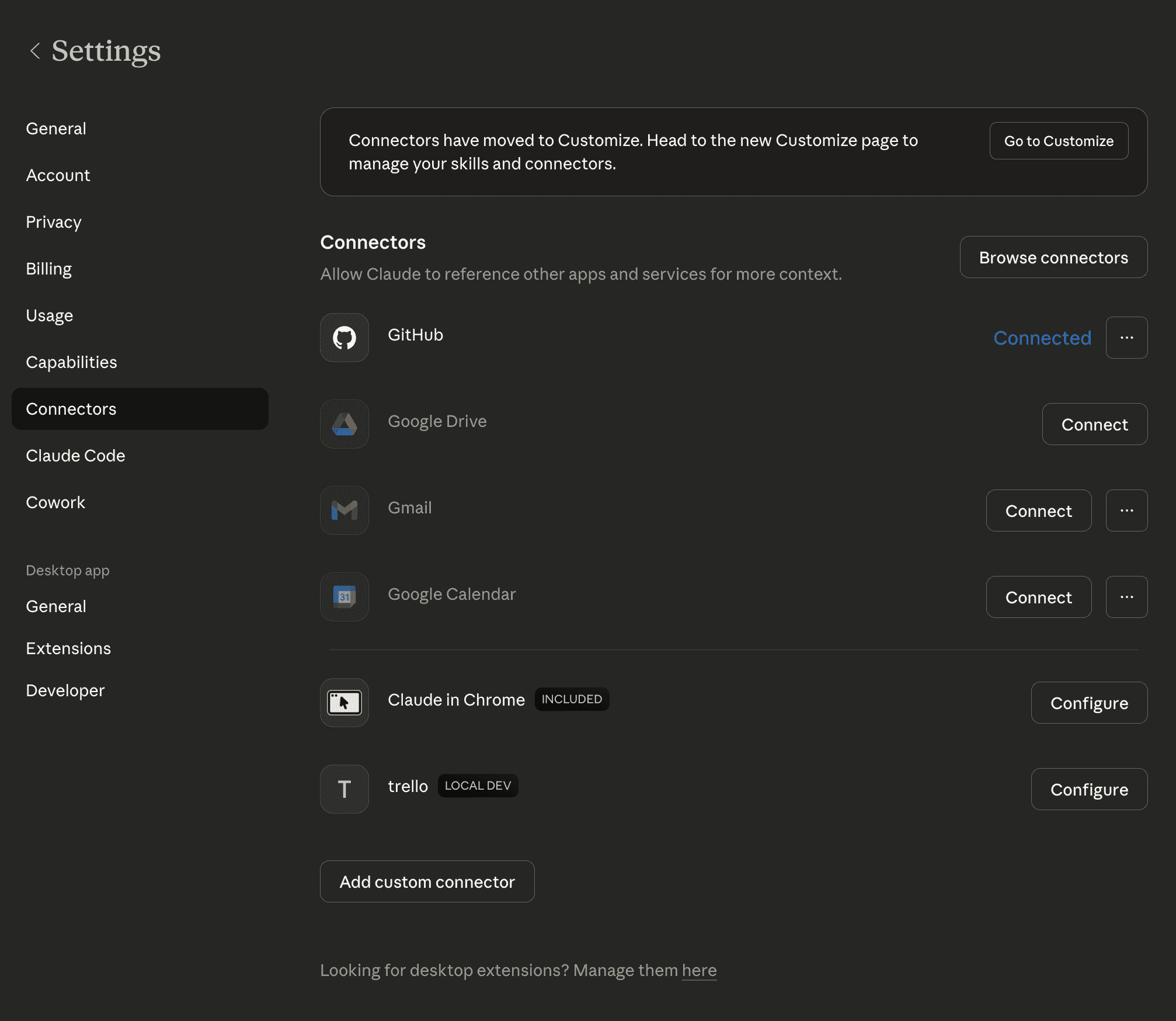
- Connecting Your Custom MCP Connector to Claude Cowork
- What I Built: A Trello MCP with 18 Tools
- Wrapping Up
With Claude Cowork, you can use Connectors to connect the agent to external tools. It comes with some pre-built connectors for popular apps like Google Drive, Slack, and Github, but you aren't limited to those. You can create custom Connectors to connect your Cowork agent to just about any tool with an API.
Under the hood, custom connectors are remote MCP servers that Claude connects to either locally on your computer or over the internet. If you've used MCP before (I wrote about building a secure MCP server previously), the core concepts are the same. You define tools with input schemas and an LLM calls them. A Cowork connector can be remotely accessible** with authentication, so Claude can reach it from anywhere, or you can run it locally on your machine if you only need access from one device.
In this post, we'll build a real connector: a Trello integration that lets Claude manage your boards, lists, and cards. I built this for my own workflow and now use it daily to manage my blog editorial calendar without leaving Claude. We'll cover:
- Setting up an MCP server with the TypeScript SDK
- Structuring tools, types, and API clients for a clean codebase
- Registering it as a custom connector in Claude Desktop
- Tips for tool design that helps the Claude make fewer mistakes
By the end, you'll have a working connector you can adapt for any API.
Why Build a Custom Connector?
Claude's built-in connectors cover many popular services, but they can't cover everything. A custom connector makes sense when:
- The service you need isn't in the directory: Trello doesn't have an official Claude connector (as of writing)
- You want fine-grained control: maybe you only want Claude to access specific boards, or you want custom formatting for responses
- You're integrating internal tools: company APIs, databases, or services that will never be in a public directory
- You want to prototype quickly: it's faster to build exactly what you need than to wait for an official integration
Custom connectors are available on Claude Pro, Max, Team, and Enterprise plans. Free users can connect one custom connector.
Project Structure
Here's how I organized the Trello connector. This structure scales well as you add more tools:
trello-mcp-server/
├── src/
│   ├── index.ts              # Entry point — creates server, registers tools
│   ├── constants.ts           # API URL, timeouts, limits
│   ├── types.ts               # TypeScript interfaces for Trello objects
│   ├── schemas/
│   │   └── common.ts          # Reusable Zod schema fields
│   ├── services/
│   │   └── trello-client.ts   # Shared API client with auth and error handling
│   └── tools/
│       ├── boards.ts          # Board and list tools
│       ├── cards.ts           # Card CRUD and search tools
│       └── members.ts         # Members, comments, checklists, labels
├── package.json
└── tsconfig.json
The key architectural decision is separating the API client from the tools. The client handles authentication, error formatting, and response truncation. The tools focus purely on what parameters to accept and how to format results. This keeps each tool handler clean and makes it easy to add new ones.
Setting Up the Project
Create a new project and install the MCP SDK:
1mkdir trello-mcp-server && cd $_ 2npm init -y 3npm i @modelcontextprotocol/sdk zod axios 4npm i -D typescript tsx @types/node 5npx tsc --init
Update package.json:
1{
2 "name": "trello-mcp-server",
3 "type": "module",
4 "main": "dist/index.js",
5 "bin": {
6 "trello-mcp-server": "dist/index.js"
7 },
8 "scripts": {
9 "start": "node dist/index.js",
10 "dev": "tsx watch src/index.ts",
11 "build": "tsc",
12 "clean": "rm -rf dist"
13 }
14}
We're using axios for HTTP requests because it gives us better error handling and timeout support than fetch, and zod for input validation because the MCP SDK uses it for defining tool schemas.
Define Your Types
Start with TypeScript interfaces for the API objects you'll work with. This ensures type safety across your tools and client:
1// src/types.ts
2
3export enum ResponseFormat {
4 MARKDOWN = "markdown",
5 JSON = "json",
6}
7
8export interface TrelloBoard {
9 id: string;
10 name: string;
11 desc: string;
12 closed: boolean;
13 url: string;
14 shortUrl: string;
15 idOrganization?: string;
16}
17
18export interface TrelloList {
19 id: string;
20 name: string;
21 closed: boolean;
22 idBoard: string;
23 pos: number;
24}
25
26export interface TrelloCard {
27 id: string;
28 name: string;
29 desc: string;
30 closed: boolean;
31 idList: string;
32 idBoard: string;
33 pos: number;
34 due: string | null;
35 dueComplete: boolean;
36 url: string;
37 shortUrl: string;
38 idMembers: string[];
39 idLabels: string[];
40 labels: TrelloLabel[];
41 dateLastActivity: string;
42}
43
44export interface TrelloLabel {
45 id: string;
46 idBoard: string;
47 name: string;
48 color: string | null;
49}
50
51export interface TrelloMember {
52 id: string;
53 fullName: string;
54 username: string;
55 avatarUrl: string | null;
56 initials: string;
57}
The ResponseFormat enum is a pattern I'd recommend for any connector. It lets Claude choose between human-readable markdown output and structured JSON, depending on what it needs to do with the data.
Build the API Client
The shared client handles authentication, request building, and error formatting. This is the most important file in the project because every tool goes through it:
1// src/services/trello-client.ts
2
3import axios, { AxiosError } from "axios";
4
5const API_BASE_URL = "https://api.trello.com/1";
6const REQUEST_TIMEOUT = 30000;
7const CHARACTER_LIMIT = 25000;
8
9let apiKey: string;
10let apiToken: string;
11
12export function initCredentials(): void {
13 const key = process.env.TRELLO_API_KEY;
14 const token = process.env.TRELLO_TOKEN;
15
16 if (!key || !token) {
17 console.error(
18 "TRELLO_API_KEY and TRELLO_TOKEN environment variables are required."
19 );
20 process.exit(1);
21 }
22
23 apiKey = key;
24 apiToken = token;
25}
26
27function authParams(): Record<string, string> {
28 return { key: apiKey, token: apiToken };
29}
30
31export async function trelloRequest<T>(
32 endpoint: string,
33 method: "GET" | "POST" | "PUT" | "DELETE" = "GET",
34 data?: Record<string, unknown>,
35 params?: Record<string, unknown>
36): Promise<T> {
37 const url = `${API_BASE_URL}/${endpoint}`;
38 const response = await axios({
39 method,
40 url,
41 data,
42 params: { ...authParams(), ...params },
43 timeout: REQUEST_TIMEOUT,
44 headers: {
45 "Content-Type": "application/json",
46 Accept: "application/json",
47 },
48 });
49 return response.data as T;
50}
A few things worth noting:
initCredentials()validates environment variables at startup, not at request time. Fail fast if the config is wrong.- The generic
trelloRequest<T>function is typed so each caller gets the right return type without casts scattered everywhere. - Auth params are injected into every request via the
paramsspread. Trello uses query parameter auth, but you'd adapt this to headers for APIs that use Bearer tokens.
Error Handling
Good error messages are critical for MCP servers because the LLM reads them to decide what to do next. A generic "request failed" message is useless. Actionable errors help the model self-correct:
1import axios, { AxiosError } from "axios";
2
3export function handleApiError(error: unknown): string {
4 if (axios.isAxiosError(error)) {
5 const axiosErr = error as AxiosError;
6 if (axiosErr.response) {
7 const status = axiosErr.response.status;
8 const body =
9 typeof axiosErr.response.data === "string"
10 ? axiosErr.response.data
11 : JSON.stringify(axiosErr.response.data);
12
13 switch (status) {
14 case 400:
15 return `Error (400 Bad Request): ${body}. Check that all required parameters are provided and IDs are valid.`;
16 case 401:
17 return "Error (401 Unauthorized): Invalid API key or token.";
18 case 404:
19 return "Error (404 Not Found): The requested resource was not found. Verify the ID is correct.";
20 case 429:
21 return "Error (429 Rate Limited): Too many requests. Wait a moment and try again.";
22 default:
23 return `Error (${status}): ${body}`;
24 }
25 }
26 }
27 return `Error: ${error instanceof Error ? error.message : String(error)}`;
28}
Each error message tells the LLM what went wrong and what to try. The 404 message suggests verifying the ID. The 429 message tells it to wait. This is a small detail that makes a big difference in how reliably the connector works in practice.
Response Truncation
MCP servers need to be mindful of context window limits. Large API responses (like listing hundreds of cards) can blow past what the LLM can process:
1export function truncateIfNeeded(text: string): string {
2 if (text.length <= CHARACTER_LIMIT) return text;
3 return (
4 text.slice(0, CHARACTER_LIMIT) +
5 "\n\n--- Response truncated. Use pagination or filters to narrow results. ---"
6 );
7}
The truncation message is intentional — it tells the LLM to try again with filters, rather than silently dropping data.
Create Reusable Schema Fields
If multiple tools share the same input fields (and they will), define them once:
1// src/schemas/common.ts 2 3import { z } from "zod"; 4import { ResponseFormat } from "../types.js"; 5 6export const responseFormatField = z 7 .nativeEnum(ResponseFormat) 8 .default(ResponseFormat.MARKDOWN) 9 .describe("Output format: 'markdown' for human-readable or 'json' for structured data"); 10 11export const boardIdField = z 12 .string() 13 .min(1, "Board ID is required") 14 .describe("Trello board ID (e.g. '60d5ecb22e9e4a1a2b3c4d5e')"); 15 16export const listIdField = z 17 .string() 18 .min(1, "List ID is required") 19 .describe("Trello list ID"); 20 21export const cardIdField = z 22 .string() 23 .min(1, "Card ID is required") 24 .describe("Trello card ID");
The .describe() calls are especially important. They become part of the tool schema that the LLM sees, so clear descriptions help it fill in the right values.
Register Your Tools
Each tool group gets its own file with a register function. Here's the card creation tool as an example:
1// src/tools/cards.ts (excerpt)
2
3import { McpServer } from "@modelcontextprotocol/sdk/server/mcp.js";
4import { z } from "zod";
5import { trelloRequest, handleApiError } from "../services/trello-client.js";
6import type { TrelloCard } from "../types.js";
7import { listIdField } from "../schemas/common.js";
8
9export function registerCardTools(server: McpServer): void {
10 server.registerTool(
11 "trello_create_card",
12 {
13 title: "Create Trello Card",
14 description: `Create a new card on a Trello list.
15
16Args:
17 - list_id (string): The list to create the card in (required)
18 - name (string): Card title (required)
19 - desc (string, optional): Card description (supports Markdown)
20 - pos ('top' | 'bottom' | number): Position in the list (default: 'bottom')
21 - due (string, optional): Due date in ISO 8601 format
22 - idMembers (string[], optional): Member IDs to assign
23 - idLabels (string[], optional): Label IDs to apply
24
25Returns: The newly created card object.`,
26 inputSchema: {
27 list_id: listIdField,
28 name: z.string().min(1).max(16384).describe("Card title"),
29 desc: z.string().max(16384).optional().describe("Card description (Markdown supported)"),
30 pos: z
31 .union([z.enum(["top", "bottom"]), z.number()])
32 .default("bottom")
33 .describe("Position in list"),
34 due: z.string().optional().describe("Due date in ISO 8601 format"),
35 idMembers: z.array(z.string()).optional().describe("Member IDs to assign"),
36 idLabels: z.array(z.string()).optional().describe("Label IDs to apply"),
37 },
38 annotations: {
39 readOnlyHint: false,
40 destructiveHint: false,
41 idempotentHint: false,
42 openWorldHint: true,
43 },
44 },
45 async ({ list_id, name, desc, pos, due, idMembers, idLabels }) => {
46 try {
47 const params: Record<string, unknown> = {
48 idList: list_id,
49 name,
50 pos: String(pos),
51 };
52 if (desc) params.desc = desc;
53 if (due) params.due = due;
54 if (idMembers?.length) params.idMembers = idMembers.join(",");
55 if (idLabels?.length) params.idLabels = idLabels.join(",");
56
57 const card = await trelloRequest<TrelloCard>("cards", "POST", undefined, params);
58
59 return {
60 content: [
61 {
62 type: "text" as const,
63 text: `Card created successfully.\n\n- **Name**: ${card.name}\n- **ID**: \`${card.id}\`\n- **URL**: ${card.shortUrl}`,
64 },
65 ],
66 };
67 } catch (error) {
68 return {
69 content: [{ type: "text" as const, text: handleApiError(error) }],
70 isError: true,
71 };
72 }
73 }
74 );
75
76 // ... additional tools (list cards, get card, update card, delete card, search)
77}
Tool Design Tips for LLM Reliability
After using this connector daily, here are some patterns that help the LLM use tools correctly:
- Write detailed tool descriptions with an
ArgsandReturnssection. The LLM reads the description to decide which tool to call and how to fill in parameters. Skimpy descriptions lead to wrong tool calls. - Use
annotationsto tell the LLM about side effects. Mark read-only tools withreadOnlyHint: trueand destructive tools (like delete) withdestructiveHint: true. This helps the LLM be more cautious when it should be. - Return structured confirmations, not just "success." Including the created object's ID and URL in the response lets the LLM chain operations without asking for clarification.
- Support both markdown and JSON output. Sometimes the LLM needs to parse the response programmatically (JSON), and sometimes it's presenting results to you (markdown).
Wire It All Together
The entry point is clean — it just initializes credentials, creates the server, registers tools, and starts listening:
1// src/index.ts
2
3import { McpServer } from "@modelcontextprotocol/sdk/server/mcp.js";
4import { StdioServerTransport } from "@modelcontextprotocol/sdk/server/stdio.js";
5import { initCredentials } from "./services/trello-client.js";
6import { registerBoardTools } from "./tools/boards.js";
7import { registerCardTools } from "./tools/cards.js";
8import { registerMemberTools } from "./tools/members.js";
9
10initCredentials();
11
12const server = new McpServer({
13 name: "trello-mcp-server",
14 version: "1.0.0",
15});
16
17registerBoardTools(server);
18registerCardTools(server);
19registerMemberTools(server);
20
21async function main(): Promise<void> {
22 const transport = new StdioServerTransport();
23 await server.connect(transport);
24 console.error("Trello MCP server running via stdio");
25}
26
27main().catch((error: unknown) => {
28 console.error("Fatal error starting server:", error);
29 process.exit(1);
30});
This server uses stdio transport, which means it communicates over standard input/output. This is the simplest transport for local use with Claude Desktop — Claude launches the process and pipes messages to it. We'll also cover remote access below if you want your connector reachable from any device.
Testing with the MCP Inspector
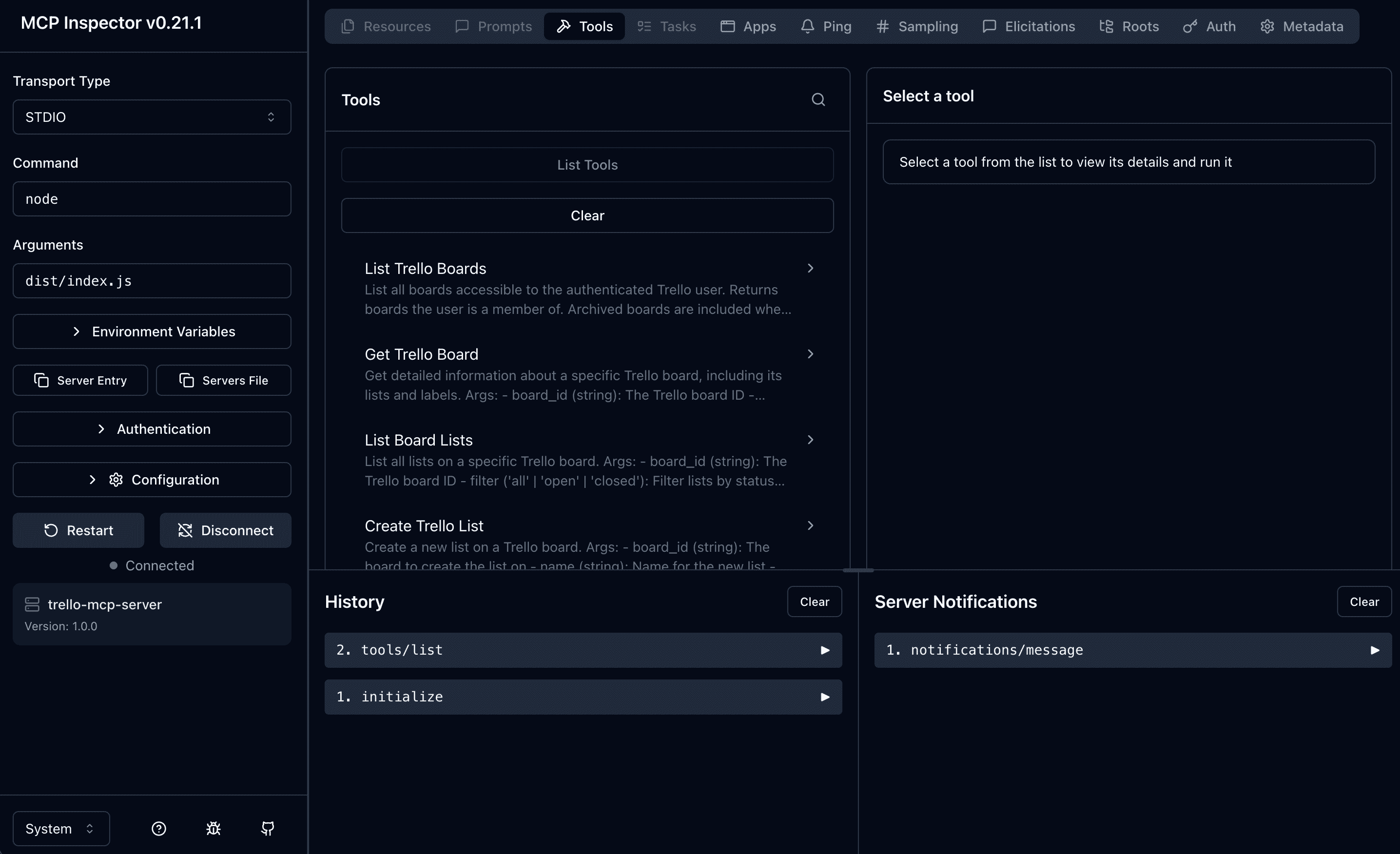
Before connecting to Claude, build the project and test your tools with the MCP Inspector:
1npm run build 2TRELLO_API_KEY=your_key TRELLO_TOKEN=your_token npx @modelcontextprotocol/inspector tsx src/index.ts
This opens a browser UI where you can call each tool manually and verify the responses look correct. I'd recommend testing:
trello_list_boards: makes sure auth workstrello_get_boardwith a real board ID: verify lists and labels come backtrello_create_cardand thentrello_list_cards: confirm the round-trip workstrello_search_cards: test with a query you know matches existing cards
Connecting Your Custom MCP Connector to Claude Cowork
Once your tools are working in the inspector, you can connect the server to Claude. There are two options depending on your needs: run it locally on your machine or deploy it remotely for access from any device.
Local Setup (Claude Desktop)
To run the server locally, add it to your claude_desktop_config.json file. You can open this file directly from Claude Desktop via Settings > Developer > Edit Config, or find it at:
- macOS:
~/Library/Application Support/Claude/claude_desktop_config.json - Windows:
%APPDATA%\Claude\claude_desktop_config.json - Linux:
~/.config/Claude/claude_desktop_config.json
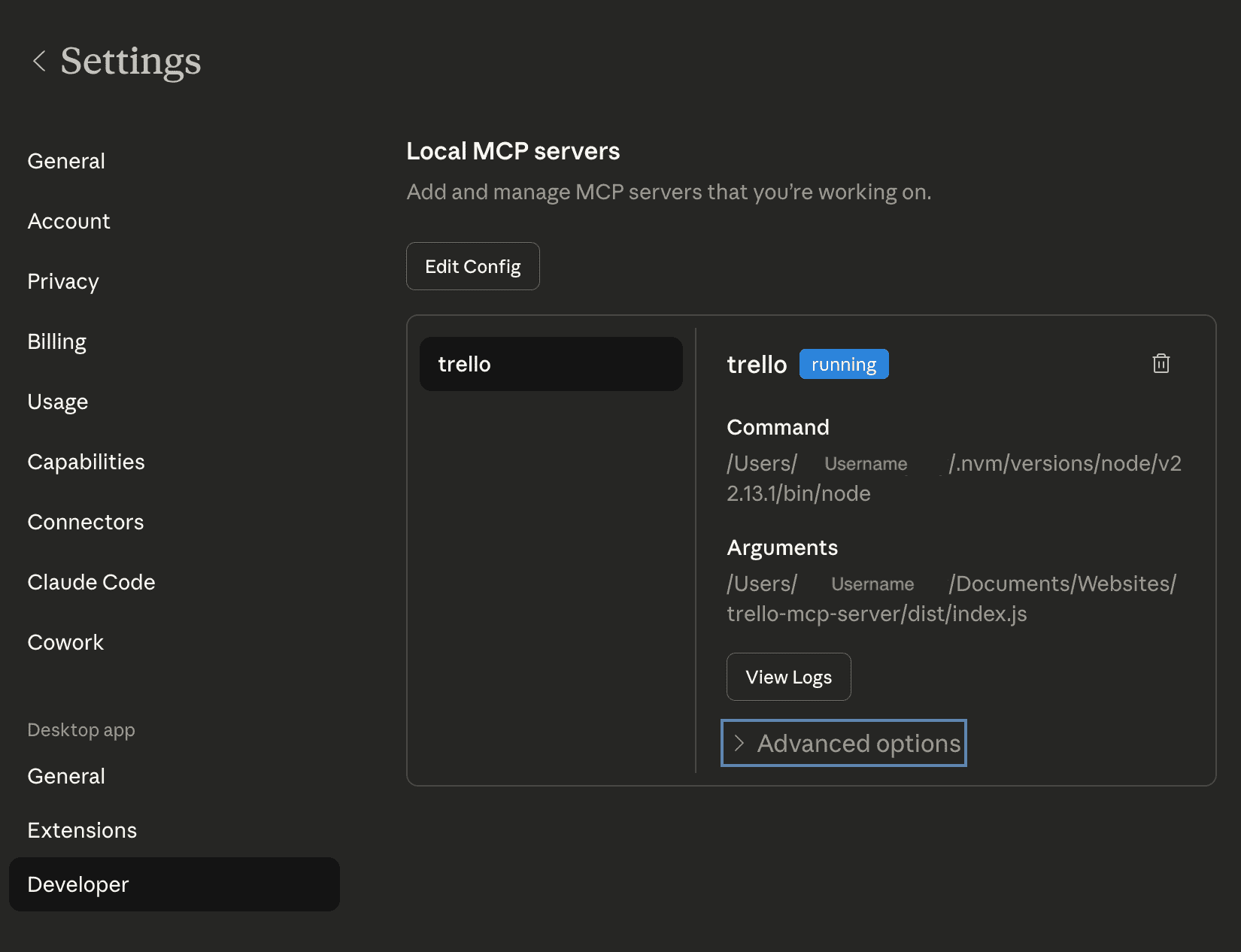
Add your server to the mcpServers section:
1{
2 "preferences": {
3 "coworkScheduledTasksEnabled": true,
4 "sidebarMode": "task",
5 "coworkWebSearchEnabled": true
6 },
7 "mcpServers": {
8 "trello": {
9 "command": "node",
10 "args": ["/absolute/path/to/trello-mcp-server/dist/index.js"],
11 "env": {
12 "TRELLO_API_KEY": "your_api_key",
13 "TRELLO_TOKEN": "your_token"
14 }
15 }
16 }
17}
Note: If you use nvm, the
commandshould be the full path to the Node binary for the version you want, e.g.~/.nvm/versions/node/v22.0.0/bin/node. Claude Desktop doesn't load your shell profile, so it won't findnodethrough nvm's shims.
Restart Claude Desktop and you should see the Trello tools available in your conversation. You can verify by asking Claude something like "What Trello boards do I have?"
Remote Setup (Claude on the Web)
If you want your connector accessible from Claude on the web (not just Claude Desktop), you'll need to swap in Streamable HTTP transport instead of stdio. Replace the transport setup in main():
1import { StreamableHTTPServerTransport } from "@modelcontextprotocol/sdk/server/streamableHttp.js";
2import express from "express";
3
4async function main(): Promise<void> {
5 const app = express();
6 app.use(express.json());
7
8 app.post("/mcp", async (req, res) => {
9 const transport = new StreamableHTTPServerTransport("/mcp", res);
10 await server.connect(transport);
11 await transport.handleRequest(req, res);
12 });
13
14 const PORT = process.env.PORT || 3000;
15 app.listen(PORT, () => {
16 console.error(`Trello MCP server listening on port ${PORT}`);
17 });
18}
From there, the key steps are:
- Deploy to any hosting provider: Cloudflare Workers makes this straightforward with their
workers-oauth-providerlibrary - Add OAuth authentication so Claude can securely connect: see the MCP auth spec for details
- Register it in Claude via Settings > Connectors > Add custom connector, entering your server URL (e.g.
https://your-server.example.com/mcp) and OAuth credentials
Claude supports both SSE and Streamable HTTP transports, though SSE may be deprecated in the coming months, so use Streamable HTTP for new deployments.
What I Built: A Trello MCP with 18 Tools
The full connector has 18 tools organized into three groups:
| Group | Tools | What They Do |
|---|---|---|
| Boards | list_boards, get_board, list_lists, create_list, archive_list | Navigate and manage board structure |
| Cards | list_cards, get_card, create_card, update_card, delete_card, search_cards | Full CRUD plus search across boards |
| Members | list_members, get_activity, add_comment, get_comments, add_checklist, create_label | Collaboration, comments, and organization |
This covers my workflow of managing blog post ideas, moving cards through editorial stages, and adding research notes as comments, enabling me to manage everything with natural language in Claude.
Wrapping Up
Building a custom Claude Cowork connector is essentially building an MCP server with good tool descriptions and connecting it to Claude. The MCP TypeScript SDK handles the protocol, Zod handles input validation, and you focus on wrapping the API you want to expose.
The patterns that matter most are the ones that help the LLM succeed: clear tool descriptions, actionable error messages, and structured response formats. Get those right and the connector feels like magic. 🪄 You just talk to Claude and things happen in Trello.
The full source code for this connector is on GitHub.